
Game Setup
This guide is in need of a revision, it is not up to our current standards
The information it provides is still likely good but we can't guarantee it.
TWO-TORIAL is a community-driven project with limited resources.
If you want to help us out, you're more than welcome to contribute!
You must obtain clean, unmodified and complete data to proceed with our guides
Corrupted or incomplete files will cause unpredictable issues we can't cover.
TWO-TORIAL does not provide or distribute game data. Do not ask.
Getting Started
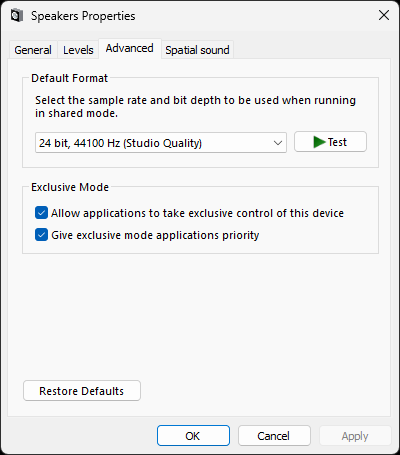
Before we even touch the game, let's fiddle with our audio settings to minimize any potential audio issues on startup. In Windows, go to Playback Devices and then right click on your default device and go to Properties. From there, hit the Advanced tab and set your Default Format to 44100 Hz and check both of the options inside Exclusive Mode as pictured.
Once that's done,, it's time to work on setting up your data.
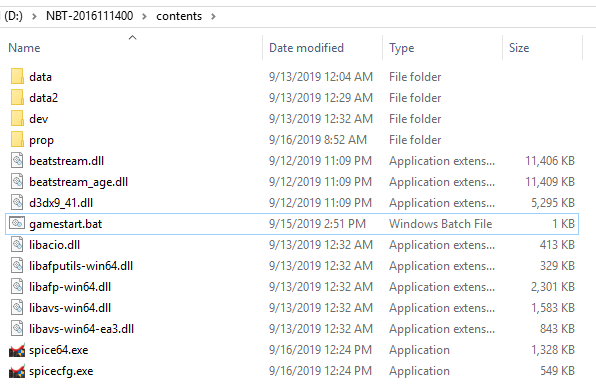
After downloading your data, the first thing to do is make sure your files aren't set to READ ONLY, make sure to uncheck it from the main folder in the Windows Properties tab if so. Then, put your desired 64-bit tools inside the game's contents folder, and to create a .bat file. Pictured below is what your folder should look like, feel free to name your .bat file whatever you desire, for the sake of convenience we've named ours gamestart.bat.
Configuring Your Tools
Now that you have your files ready, open up your .bat file in your desired text editor (we're using Notepad++) and edit it with your desired parameters, for the purpose of this guide we will demonstrate both a local network configuration and an online example below with SpiceTools, skip to whichever you're in need of accordingly and please keep in mind you can add whatever additional parameters you desire.
If you're not using SpiceTools:
The overall structure of your .bat file will differ from the guide, namely the initialization of SpiceTools won't be present and potential parameters may differ. As stated above, make sure to check the documentation of your tools to ensure you're using the correct parameters for your needs.
Configuring for a Local Network
For our local network configuration example, on a single line in the .bat file we're going to type spice64.exe -ea -w and save the file.
What do these different parameters do?
-eaenables an integrated e-amusement server within SpiceTools.-wwill boot the game in windowed mode which will ease our initial setup and testing later, make sure to remove-wto run the game fullscreen once you're done setting up!
Configuring for an Online Network
For our online network example we're simply doing the above but with different parameters! On our single line, we're going to type spice64.exe -p XXXXXXXXXXXXXXXXXXXX -url http://yoururlhere.com/ -w and save the file.
What do these different parameters do?
-ptakes your PCBID on your network of choice, simply replaceXXXXXXXXXXXXXXXXXXXXwith your PCBID.-urlallows you to specify a custom service URL to connect with, simply replacehttp://yoururlhere.com/with your chosen network's URL.-wwill boot the game in windowed mode which will ease our initial setup and testing later, make sure to remove-wto run the game fullscreen once you're done setting up!
Final Steps and Setting up the Game
The last steps you'll have to do with your chosen tools is simply setting up your desired keybinds! Make sure you setup the Test keybind as it will be critical for setting up the game. Once you've done that, launch your game for the first time by double clicking the .bat you setup and the game should load.
You're all done! If you have a touchscreen monitor make sure it's plugged in, it should work automatically, if it doesn't check out the advertised Troubleshooting section at the link below.
Have any other errors?
Check out the Troubleshooting section and Error Code section to resolve any issues not seen in this guide to greater depth.