
Troubleshooting
You must obtain clean, unmodified and complete data to proceed with our guides
Corrupted or incomplete files will cause unpredictable issues we can't cover.
TWO-TORIAL does not provide or distribute game data. Do not ask.
Changing the Language
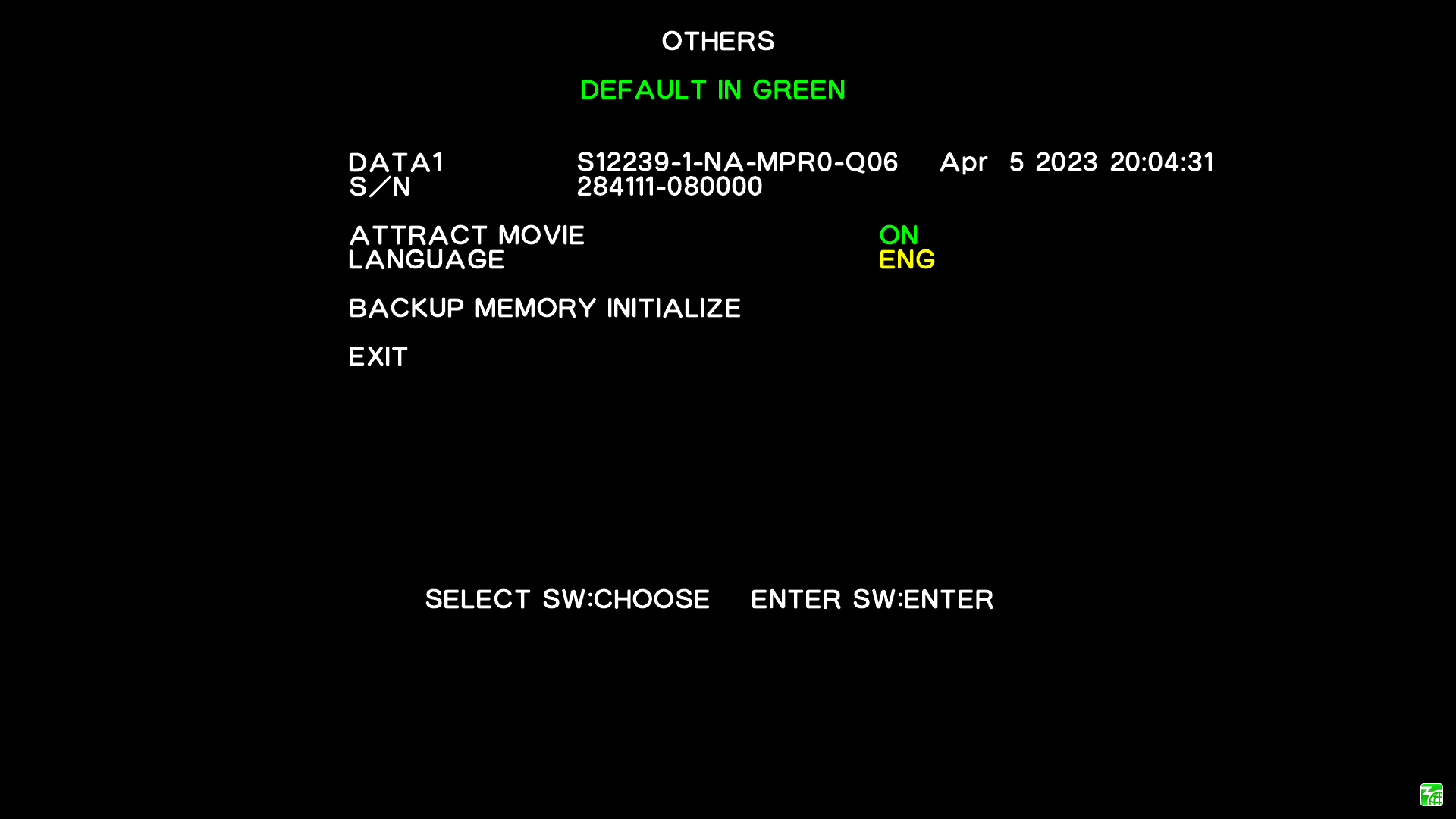
Nijiiro supports changing the language from the test menu. The officially supported languages are:
- Japanese (Default)
- English
- Chinese (zh-TW)
- Korean
An unofficial mod allows you to change the language to Chinese (simplified), this can be found on the Discord.
Using F1, the arrow keys and Enter, navigate to OTHERS -> LANGUAGE
My game is frozen/black screen
You can fix this by running the game as admin. You can also try updating windows and gpu drivers.
My game takes a long time to boot
First boot after connecting to a network will be very long (>90s)
The game files for Nijiiro consists of thousands of small .bin files and Windows Defender is known to spend a long time scanning through them during game boot up.
One way to massively speed up boot times is to add the entire game folder as a Windows Defender Exception.
Doing this will prevent Defender from scanning your game folder for viruses.
Only do this if you trust the source of your data!
- Open
Virus & threat protection. - Under
Virus & threat protection settingsclick theManage Settingsbutton. - Scroll down to
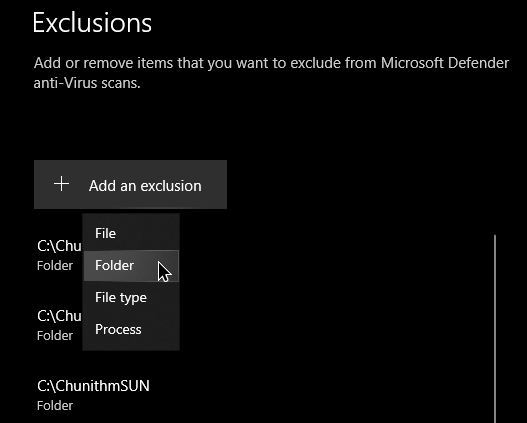
Exclusionsand click onAdd or remove exclusions. - Click the
Add an exclusionbutton, select thefolderoption, navigate to the root of your game installation and clickSelect Folder.
My game is running crazy fast/slow
The game needs to be ran at 120 FPS or things will break.
If you have a display that supports 120 Hz or higher
- Set your display to 120 Hz. You may need to make a custom resolution.
- In
config.tomlsetvsync =totrue.
If you have a display that is less than 120 Hz
- In
config.tomlsetvsync =tofalseandwindowed =totrue. - Alternatively you can use RTSS.
My game is not connected to a network but I set one up
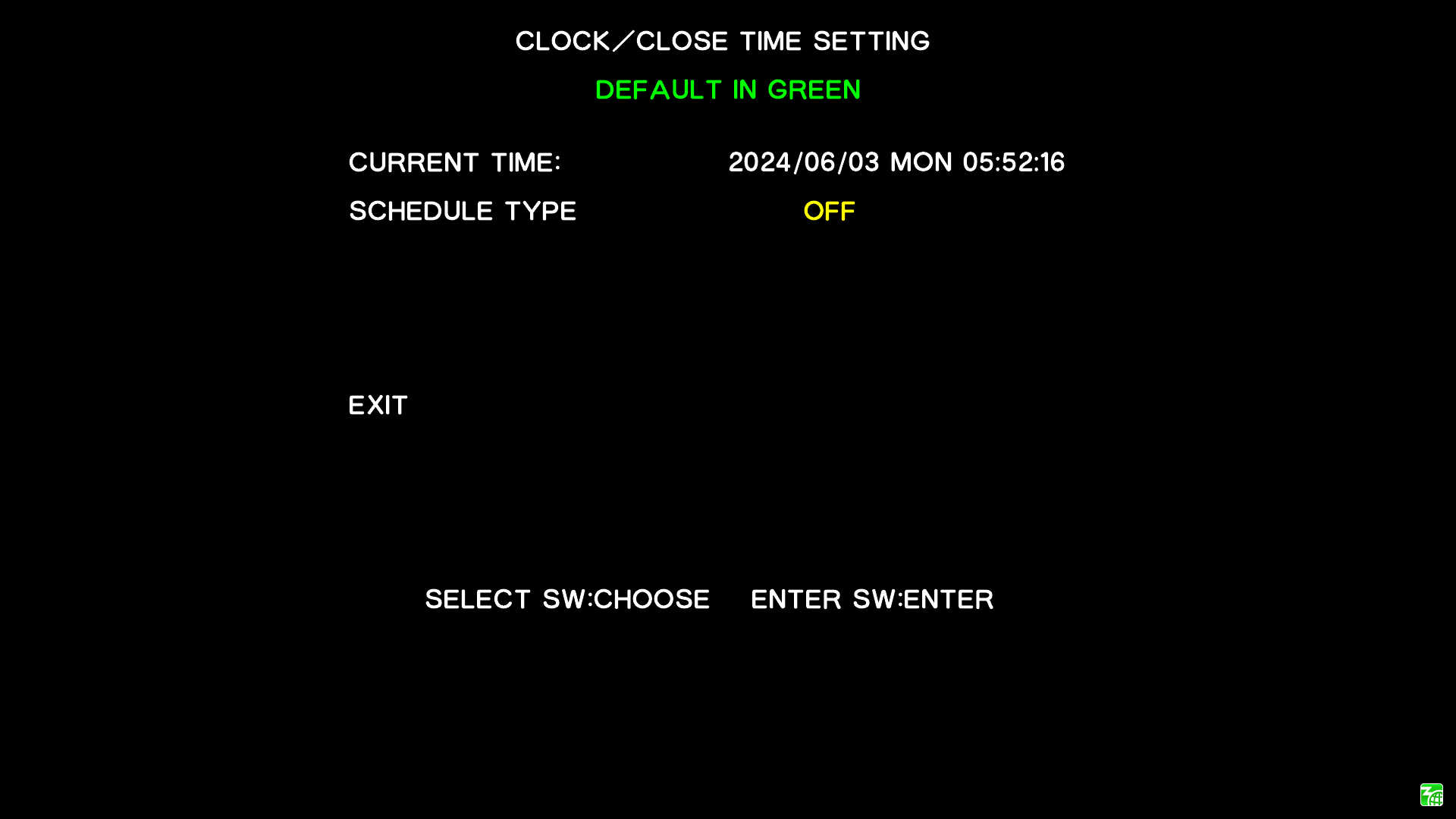
Disable shop close time or you won't always be able to connect to the network
Using F1 arrow keys and Enter navigate to GAME OPTIONS -> CLOCK/CLOSE TIME SETTING -> SCHEDULE TYPE.
If you are still unable to connect that means you have incorrectly configured your config.toml or your server.
My game is still too big/small after setting the resolution in config.toml
This will happen if you incorrectly set your resolution or scale.
You can check your display resolution by right clicking your desktop and selecting Display settings.
You can set your scale to 100% right above where it says your resolution.

My controller is dropping inputs / I can't hit good drumrolls
This a common issue on some controllers.
In config.toml increase wait_period = by 1, then test it in-game and repeat until it feels correct.
Best settings for Nvidia GPUs
This will help with latency and other issues
In NVIDIA Control Panel set the following settings for Taiko.exe.
- Low Latency Mode
Ultra - Power management mode
Prefer maximum performance - Vertical sync
Fast
Audio
By default the game will use WASAPI Shared
To use WASAPI exclusive:
- Inside
config.toml, setwasapi_shared =tofalse
To use ASIO:
- Inside
config.toml, setwasapi_shared =tofalseand setasio =totrue. - Change
asio_driver =toasio_driver = "<Your ASIO Driver Name>"
For more information refer to the general Audio guide.