
Game Setup
You must obtain clean, unmodified and complete data to proceed with our guides
Corrupted or incomplete files will cause unpredictable issues we can't cover.
TWO-TORIAL does not provide or distribute game data. Do not ask.
Standard and Lightning modes
Before proceeding with the setup, it's important to understand the two cabinet types for IIDX:
-
Lightning (TDJ/LDJ-010):
- Runs at 120 FPS
- Requires a 120 Hz main monitor
- Optional second touchscreen 60 Hz monitor called a subscreen
-
Standard/Legacy (LDJ/LDJ-003/LDJ-012):
- Runs at 60 FPS
- Requires a 60 Hz main monitor
- No subscreen
The game data comes in three variants based on the bm2dx.dll file.
You can patch an LDJ dll to run in TDJ mode, but this will disable video recording.
For simplicity, we'll use "TDJ" for Lightning Mode and "LDJ" for Standard Mode throughout our guides.
Preparing data
Ensure your game files are not marked as read-only:
- Right click the directory containing your files
- Click on
Properties - Under the
Generaltab, findAttributesand uncheckRead-only - Click
Apply - When prompted, select
Apply changes to this folder, subfolders and files - Click
OKto confirm, thenOKagain to close Properties
The complete game data should be approximately 95 GB or larger.
If your data is significantly smaller, you likely have an update archive instead of the full game data.
Here's what the expected data structure should look like:
If your data does not look like this
If you have .dll files next to your data, prop, etc., folders:
- Create a
modulesfolder if it does not exist already - Move all
.dllfiles into it
If extra directories or files are still present (executables, scripts, etc.), remove them.
This also indicates tampered data, we strongly recommend obtaining clean data from elsewhere.
If your data is already up-to-date, you can skip ahead to the Installing spice2x section
Updating data
Make sure you're using the right update for your current game version
IIDX updates have LDJ and one or two datecodes in their archive names.
Single datecode: Contains one update (e.g., LDJ_NewDateCode.7z)
Two datecodes: Updates from the older to newer version (e.g., LDJ_OldDateCode-NewDateCode.rar)
A date code should look something like this: YYYYMMDDXX
In the two-datecode example:
OldDateCodeis the older date, the game version required to apply this updateNewDateCodeis the newer date, and is the version you'll arrive at after applying the update
- Extract the update to your game directory, ensure directories align and overwrite files when prompted
- Open
prop\ea3-config.xmland find the<ext>line: - Update the datecode to match your new game version and save
- If
prop\bootstrap.xmlexists, also update its<release_code>line:
Installing spice2x
If you already have spice2x installed, ensure you're using the latest version
- Visit spice2x.github.io to download the latest release
- Extract both
spice64.exeandspicecfg.exefrom the archive into your game's directory
Additional steps for AMD and Intel graphics cards
Since KONAMI games are designed for NVIDIA GPU's, AMD and Intel users need additional files:
- Locate the
spice2x\stubs\64\folder in the spice2x archive - Extract all
.dllfiles from there into your game'smodulesfolder
Configuring spice2x
Following tabs correspond to the ones found in spicecfg
Additional information is available at spice2x's wiki.
Avoid changing or patching anything you don't need or understand unless explicitly told to
This tab is used to bind your keyboard and controller buttons
Bind vs Naive
Bind - Use for controllers and hardware devices. More responsive and detects any HID device.
Naive - Use for device agnostic keyboard binds. Less responsive but works with simulated keystrokes.
Binding your buttons
Click on Bind or Naive then press the key you want associated with the action.
With your controller and/or keyboard plugged in, configure your keys for P1 and/or P2:
- Maintenance:
Service, Test - Game buttons:
SW1 to SW7, Start, EFFECT, VEFX - Keypad:
Keypad Insert Card,1 to 9
Only if you play with a keyboard:
- Turntable:
TT+, TT-and optionallyTT+/-which alternates betweenTT+andTT-on each press.
Additional info
- Use page navigation at the bottom to bind multiple buttons to the same input
- Check Bind Many to bind multiple controls in sequence
- Click Edit after binding for advanced options (invert, MIDI sensitivity, etc.)
This tab is used to bind analog controls like the turntable
Ignore this tab if you play with a keyboard
Bind your controller's turntable
With a controller, instead of binding TT+ or TT- in the Buttons tab, you need to:
- Click
Bind - In
Device, pick your controller - In
Control, pick the control that updates the preview when turning the turntable, typicallyX - Click
Close, leaving the rest of the settings alone
This tab is used to bind keys to toggle spice2x and game-related overlays
Binding extra buttons here is optional, defaults are fine
Click on Bind or Naive then press the key you want associated with the action.
This tab allows you to configure controller lights to sync with the game
Not all controllers support this, but it does not affect gameplay and is completely optional.
- Click
Bind - In
Device, pick your controller - In
Light Control, select the corresponding light - Click
Close - Repeat for your other lights
This tab lets you configure which cards are used to save your game profile to
If you own a physical e-amuse/FeliCa card and a compatible NFC card reader
Setup instructions vary depending on your specific reader model.
Navigate to the Advanced tab and scroll down to the NFC Card Readers section.
Browse the available options and hover over each one to view descriptions and configuration guidance.
There is no need for you to specify cards for either player in this tab when using a card reader.
If you don't, you can use a virtual card number instead
If you already have generated a card number before, you may use this one.
To generate a new card number for Player 1 or 2:
- Click on
Open... - Choose where to save your card number
- Give it a file name (e.g.
card0.txt) - Click save
- Finally, click on
Generate
This will automatically generate a valid card number for you and keep it in the file you specified.
Go through the spice2x Patching to import and pick patches
No need to change anything here
Important
Enable IIDX Disable Cameras (-iidxdisablecams) unless you have a webcam connected and wish to use it with the camera hook from the advanced tab.
NVIDIA GPU users ONLY
Enable NVIDIA profile optimization (-nvprofile) to let spice2x create an optimized profile for your game.
Optional: Enabling TDJ (Lightning mode)
You may want to enable IITX TDJ Mode (-iidxtdj) if your main monitor is 120 Hz capable.
Optional: Camera hook
With a webcam connected, you can:
- Enable
IIDX Cam Hook (-iidxtdjcamhook) - Make sure
IIDX Disable Cameras (-iidxdisablecams)from theOptionstab is disabled - Optionally enable
IIDX Camera Order Flip (-iidxflipcams)if you have two cameras connected and the wrong one is being used
This allows spice2x to try and interface with your webcam to enable camera functionality in the game.
You can then bind a button to the Camera Control overlay in the Overlay tab to adjust camera settings.
No need to change anything here
Configuring audio
Check out our general Audio guide to understand audio modes better, at least the TL;DR
- Open
spicecfg.exe - At the very top, click on
ShortcutsthenAudio Playback Devices - In the popup window, right click on your default audio device, and click on
Properties - Go to the
Advancedtab
Then, depending follow instructions for your desired audio mode:
Setup for WASAPI Exclusive (default)
- Check both boxes under
Exclusive Mode - Open the
Default Formatdropdown - Pick the
16 bit, 44100 Hz (CD Quality)option, clickApplythenOK
Setup for WASAPI Shared
- Open the
Default Formatdropdown - Pick the
16 bit, 48000 Hz (DVD Quality)option, clickApplythenOK - Return to
spicecfg, go to thePatchestab - Following the patching guide and patch
Shared Mode WASAPI
Optionally: go to the Options tab, and at the very bottom enable Low Latency Shared Audio to help mitigate the latency penalty from using Shared audio.
Setup for ASIO (requires specialized hardware)
- Check both boxes under
Exclusive Mode - Open the
Default Formatdropdown - Pick the
16 bit, 44100 Hz (CD Quality)option, clickApplythenOK
Connecting to a network
Pick one or the other, not both!
Option 1: Remote (Online Network)
Remote networks typically require an invitation to join.
You'll need to connect with members of the community who can provide you with an invite.
Your network should provide you with the necessary information to proceed:
- Open
spicecfg.exeand head to theOptionstab
Under the Network category, set the following settings provided by your network:
EA Service URL (-url)PCBID (-p)
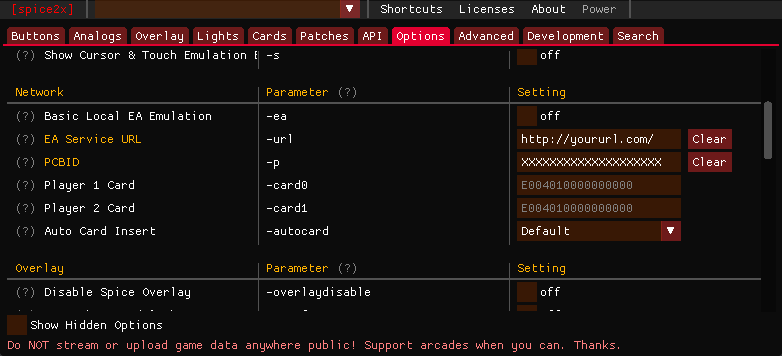
Option 2: Local e-amuse Emulator (Asphyxia)
For instructions on setting up Asphyxia, please refer to our Asphyxia setup guide.
After Asphyxia is setup with the proper plugin for your game:
- Open
spicecfg.exeand head to theOptionstab - Under the
Networkcategory, set yourEA Service URL (-url)to point to your asphyxia server, typicallylocalhost:8083
Configuring your game
Read through the Extra Information page
Installing VCRedist & DirectX
Download and install:
Before playing
A few things to remember before each play session
- Close of any applications running in the background which could affect performance
- Double-check your monitor is oriented properly for this game
- Double-check your sample rate is correct for this game
- Connect your controller
First launch
If you've followed all instructions correctly, you're now finally ready to launch the game!
First plug your controller if you have one and run spice64.exe, press Yes when it asks for elevated privileges.
If it's your first time running the game, you'll immediately be greeted with this screen.
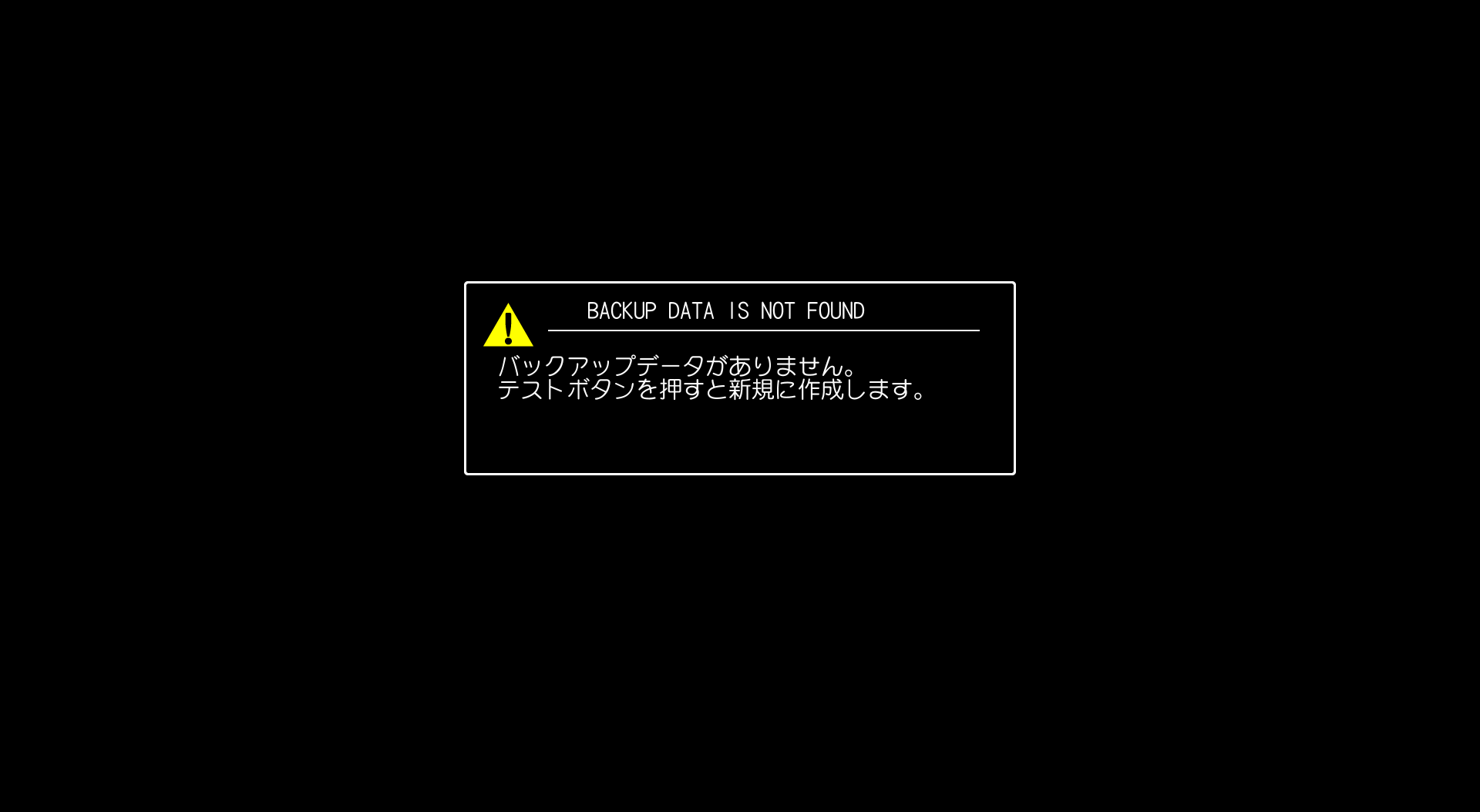
Press your Test key to initialize the backup data, a message will pop up stating it's been initialized.
Next, you'll get another error.
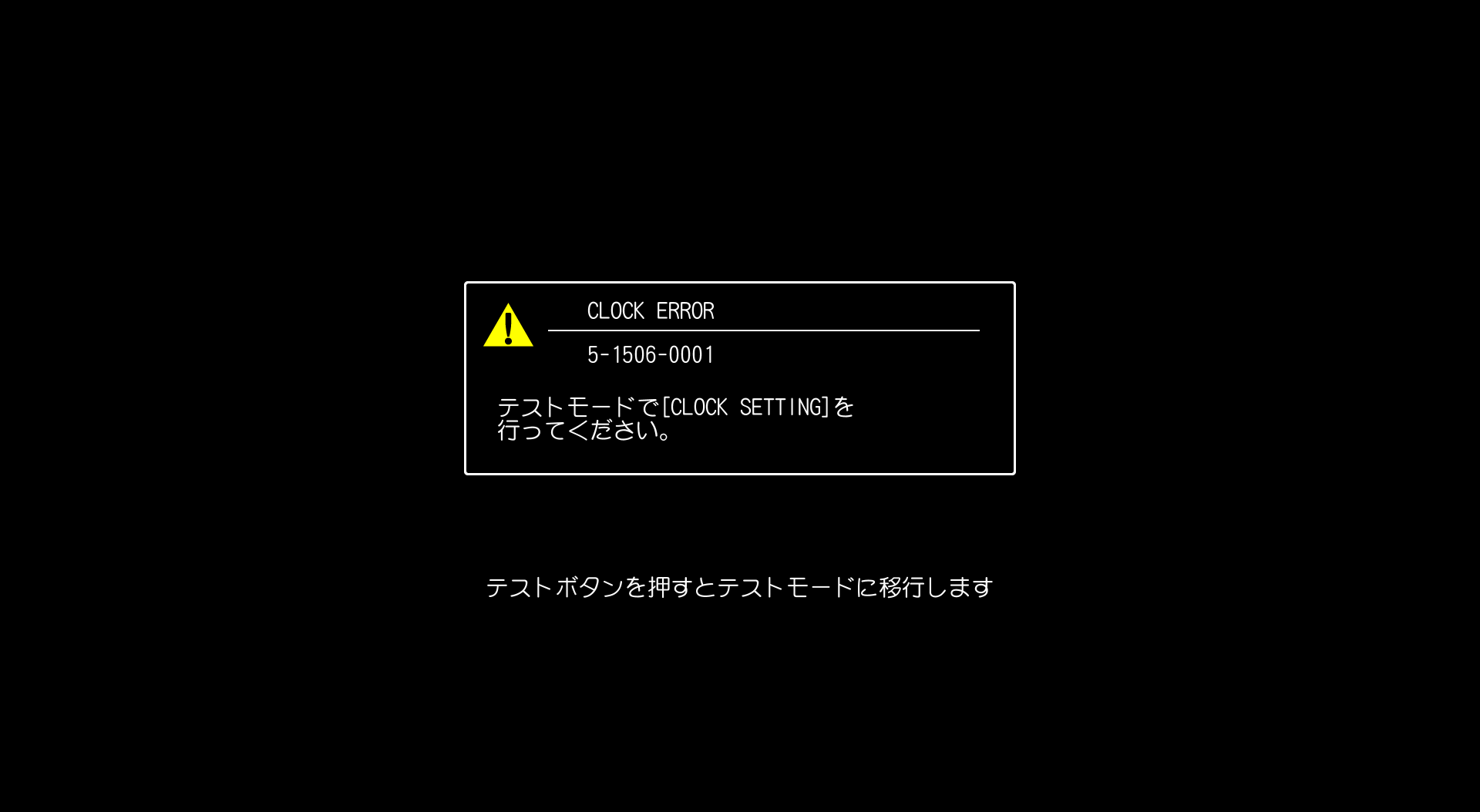
Press your Test key again and let the game run for a bit until the monitor check is complete.
You will now be taken to the service menu.
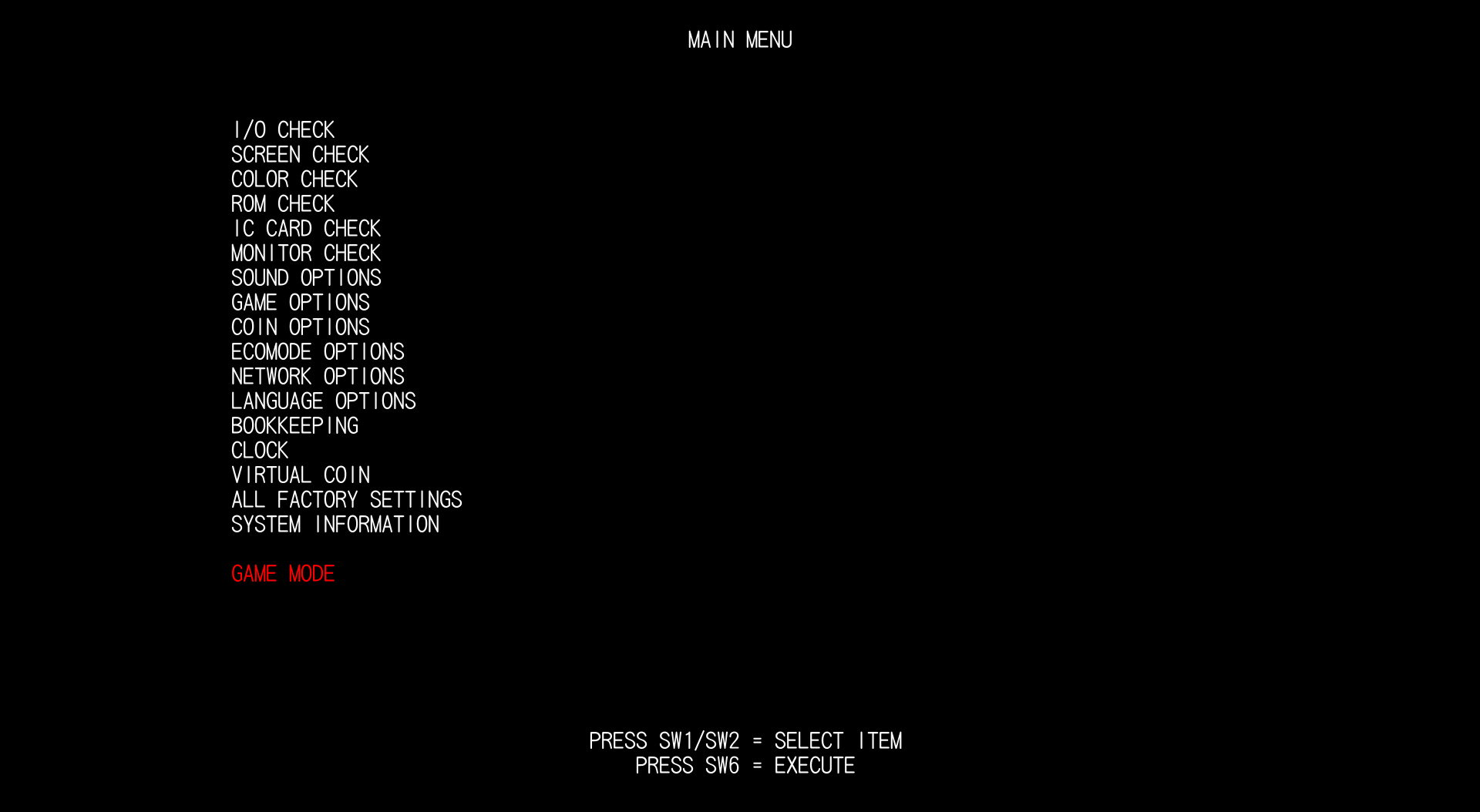
Instructions on how to navigate the menu are shown at the bottom of the screen:
- Press
1and2to go up and down. - Press
6to select/execute.
Start by going up to CLOCK.
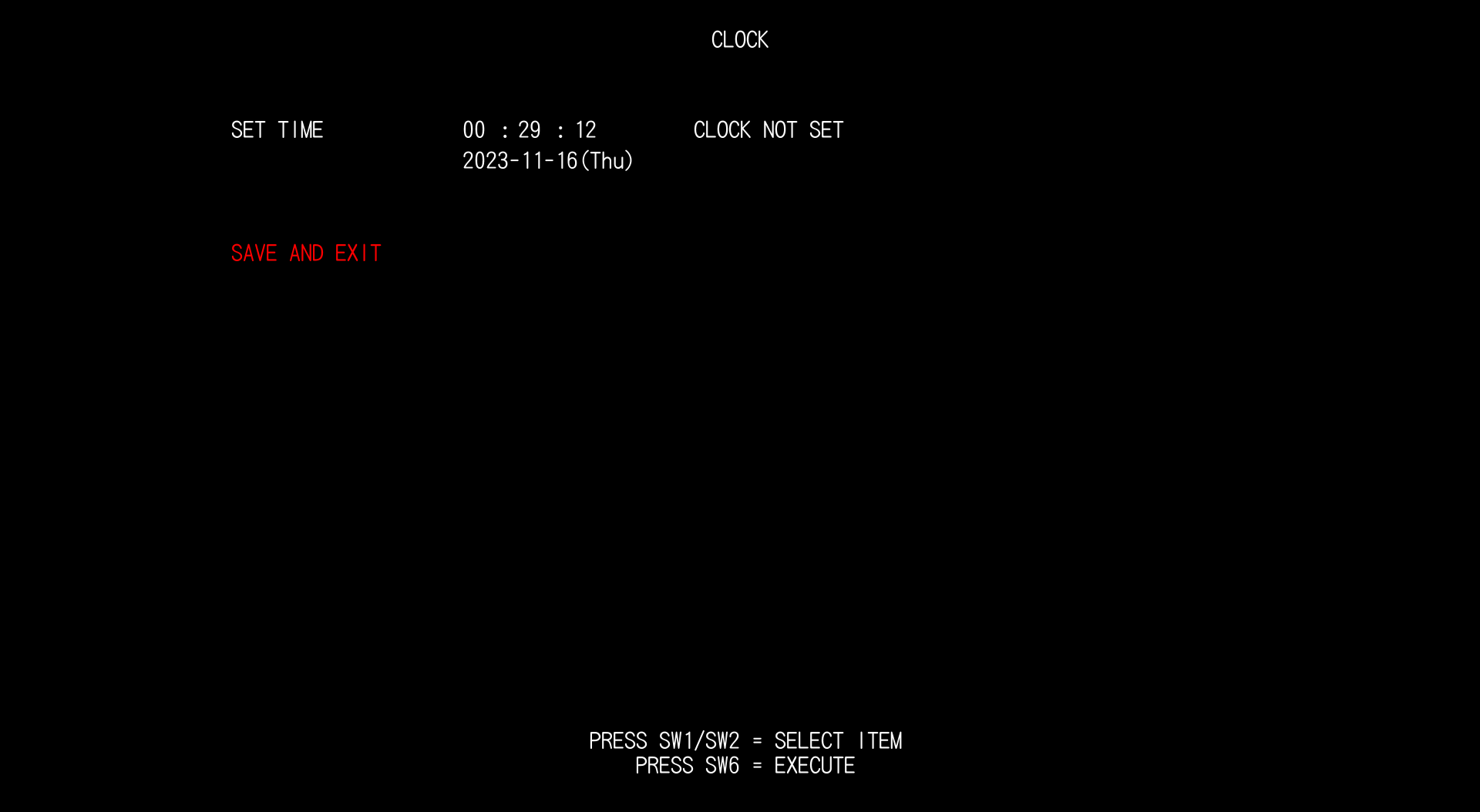
Here, simply select SAVE AND EXIT and the clock will be set.
You'll be back in the service menu.
Go to NETWORK OPTIONS then SHOP NAME SETTING.
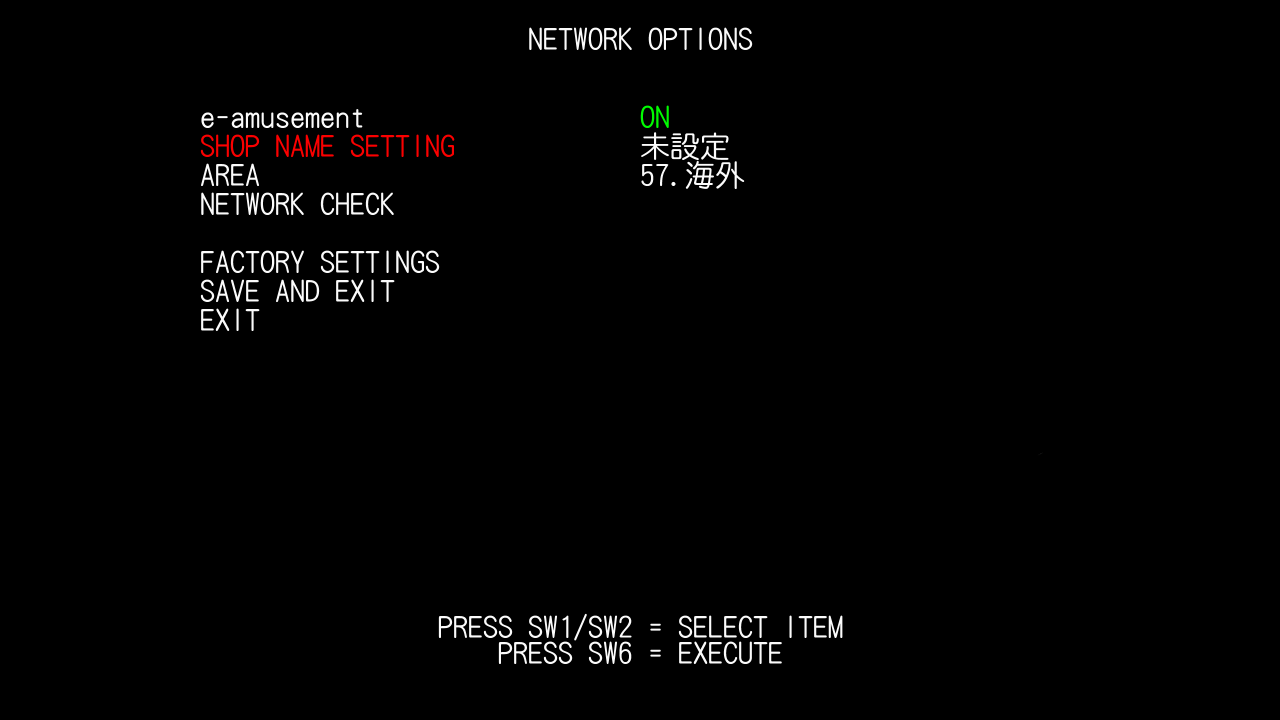
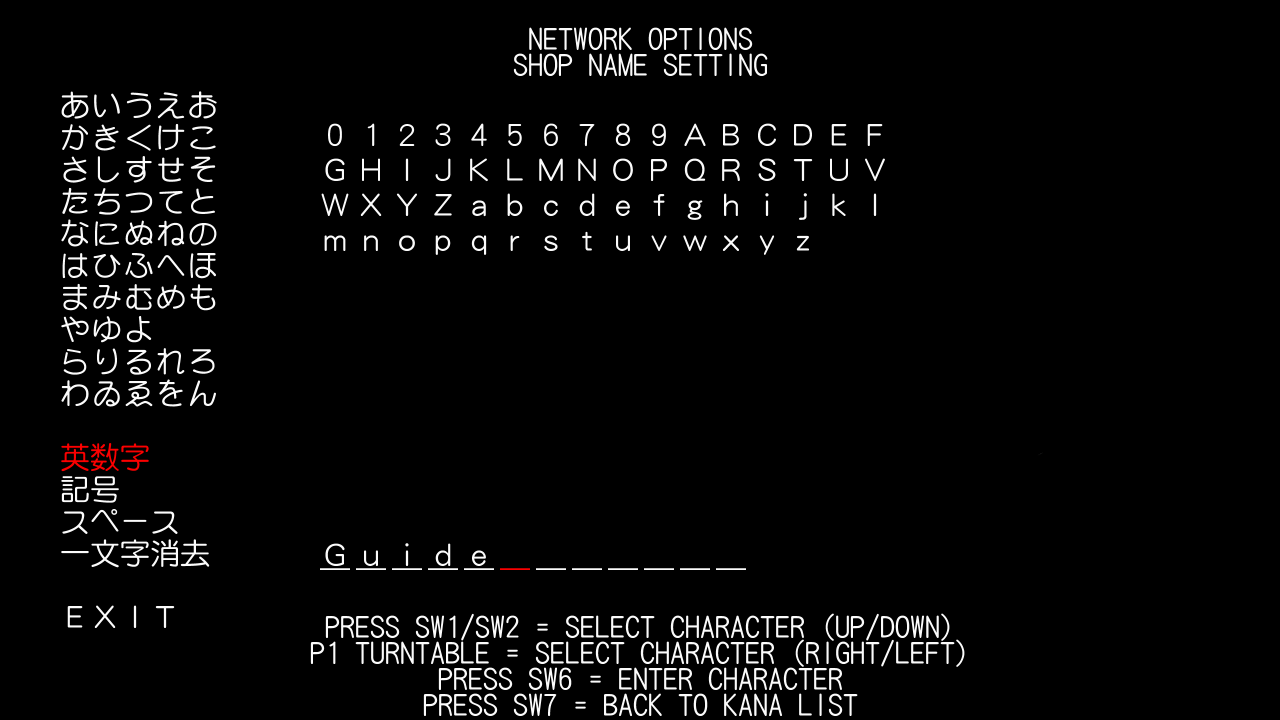
You will need to set a shop name.
- Name your shop to whatever you'd like. Again, navigation instructions are at the bottom of the screen.
- Go to
EXITthenSAVE AND EXIT.
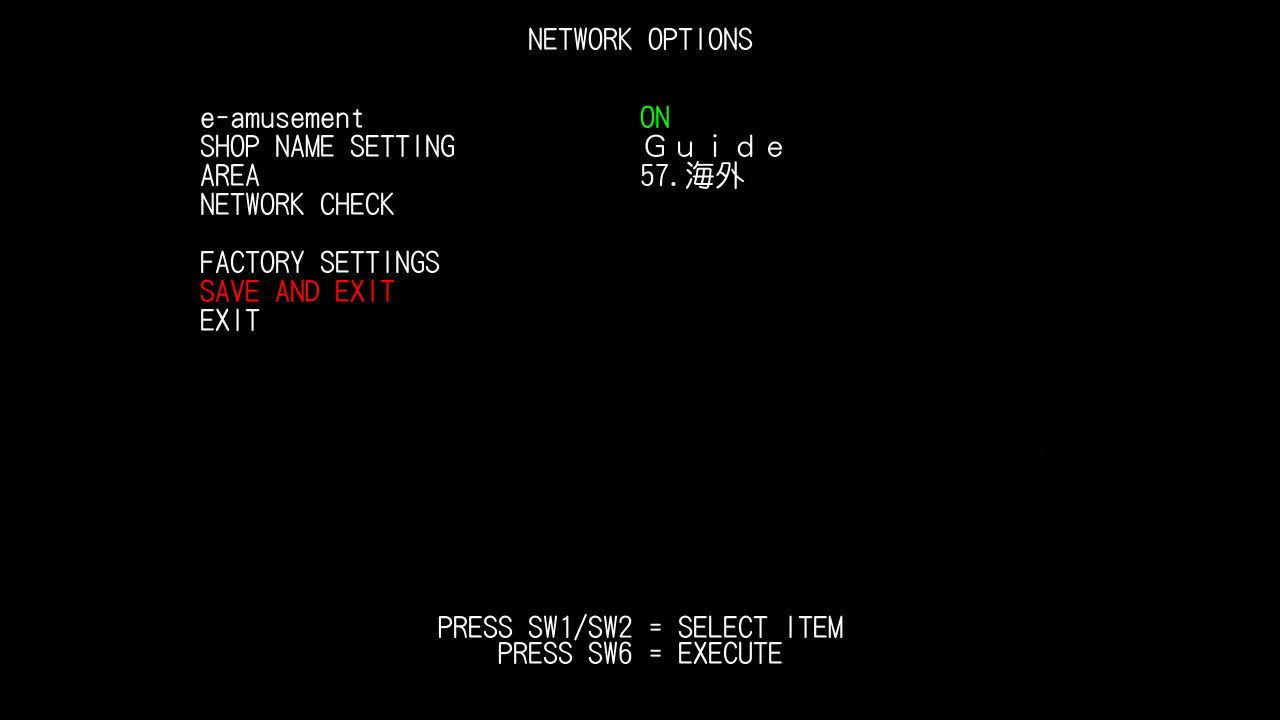
Select GAME MODE.
You're all done! The game should load up properly now
Carding in
Before carding in, you have the option to change the game's language by pressing your EFFECT key
For LDJ (Standard mode)
LDJ should accept keypad number binds:
- Press your
Keypad Insert Cardbutton. - Enter your code using your keypad binds.
For TDJ (Lightning mode)
TDJ will ignore keypad number binds, you need to:
- Press your
Keypad Insert Cardbutton. - Press your
Toggle Sub Screenoverlay button (PgUp by default) to bring up the sub screen. - Enter your code by clicking on the subscreen's keypad.
- If your code is accepted, you may now close the overlay.
Help
Something's wrong?
Make sure you've followed all steps correctly and also read other relevant guides.
Still stuck? You can join our Discord community server for support!
Click on the Discord logo at the bottom right of the page.