
Game Setup
You must obtain clean, unmodified and complete data to proceed with our guides
Corrupted or incomplete files will cause unpredictable issues we can't cover.
TWO-TORIAL does not provide or distribute game data. Do not ask.
Preparing Data
Ensure your game files are not marked as read-only:
- Right click the directory containing your files
- Click on
Properties - Under the
Generaltab, findAttributesand uncheckRead-only - Click
Apply - When prompted, select
Apply changes to this folder, subfolders and files - Click
OKto confirm, thenOKagain to close Properties
The complete game data should be approximately 5 GB or larger
Here's what the expected data structure should look like:
If your data does not look like this
If you have .dll files next to your data, prop, etc., folders:
- Create a
modulesfolder if it does not exist already - Move all
.dllfiles into it
If extra directories or files are still present (executables, scripts, etc.), remove them.
This also indicates tampered data, we strongly recommend obtaining clean data from elsewhere.
Installing spice2x
If you already have spice2x installed, ensure you're using the latest version
- Visit spice2x.github.io to download the latest release
- Extract both
spice64.exeandspicecfg.exefrom the archive into your game's directory
Configuring spice2x
Following tabs correspond to the ones found in spicecfg
Additional information is available at spice2x's wiki.
Avoid changing or patching anything you don't need or understand unless explicitly told to
This tab is used to bind your keyboard and controller buttons
Bind vs Naive
Bind - Use for controllers and hardware devices. More responsive and detects any HID device.
Naive - Use for device agnostic keyboard binds. Less responsive but works with simulated keystrokes.
Binding your buttons
Click on Bind or Naive then press the key you want associated with the action.
With your keyboard plugged in, configure your keys for P1 and/or P2:
- Maintenance:
Service, Test
Mahjong Fight Girl is a touchscreen game, so it does not need any extra button configuration beyond the above.
Additional info
- Use page navigation at the bottom to bind multiple buttons to the same input
- Check Bind Many to bind multiple controls in sequence
- Click Edit after binding for advanced options (invert, MIDI sensitivity, etc.)
No need to change anything here
This tab is used to bind keys to toggle spice2x and game-related overlays
Binding extra buttons here is optional, defaults are fine
Click on Bind or Naive then press the key you want associated with the action.
No need to change anything here
This tab lets you configure which cards are used to save your game profile to
If you own a physical e-amuse/FeliCa card and a compatible NFC card reader
Setup instructions vary depending on your specific reader model.
Navigate to the Advanced tab and scroll down to the NFC Card Readers section.
Browse the available options and hover over each one to view descriptions and configuration guidance.
There is no need for you to specify cards for either player in this tab when using a card reader.
If you don't, you can use a virtual card number instead
If you already have generated a card number before, you may use this one.
To generate a new card number for Player 1 or 2:
- Click on
Open... - Choose where to save your card number
- Give it a file name (e.g.
card0.txt) - Click save
- Finally, click on
Generate
This will automatically generate a valid card number for you and keep it in the file you specified.
No need to change anything here
No need to change anything here
Choose Cab Type
Mahjong Fight Girl has multiple cab types. HG is currently the only supported cab type.
No need to change anything here
No need to change anything here
Connecting to a network
Pick one or the other, not both!
Option 1: Remote (Online Network)
Remote networks typically require an invitation to join.
You'll need to connect with members of the community who can provide you with an invite.
Your network should provide you with the necessary information to proceed:
- Open
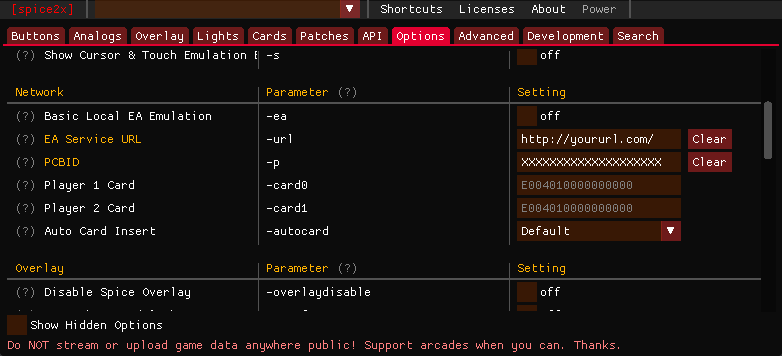
spicecfg.exeand head to theOptionstab
Under the Network category, set the following settings provided by your network:
EA Service URL (-url)PCBID (-p)
Option 2: Local e-amuse Emulator (Asphyxia)
For instructions on setting up Asphyxia, please refer to our Asphyxia setup guide.
After Asphyxia is setup with the proper plugin for your game:
- Open
spicecfg.exeand head to theOptionstab - Under the
Networkcategory, set yourEA Service URL (-url)to point to your asphyxia server, typicallylocalhost:8083
Installing VCRedist & DirectX
Download and install:
Before playing
A few things to remember before each play session
- Close of any applications running in the background which could affect performance
- Double-check your monitor is oriented properly for this game
- Double-check your sample rate is correct for this game
- Connect your controller
Help
Something's wrong?
Make sure you've followed all steps correctly and also read other relevant guides.
Still stuck? You can join our Discord community server for support!
Click on the Discord logo at the bottom right of the page.